
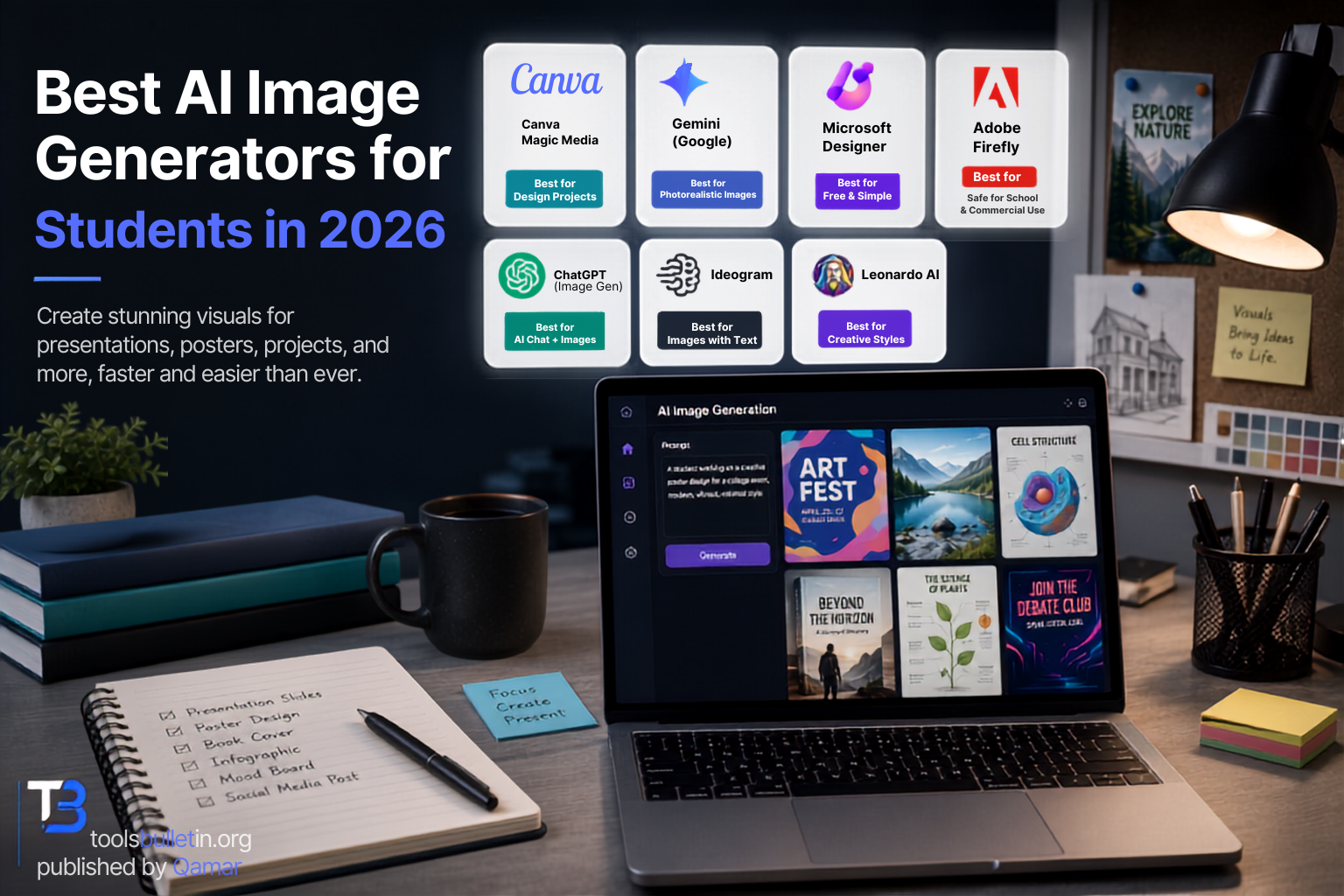
Somewhere around the third all-nighter of the semester, I stopped hand-drawing diagrams for presentations and started generating them. Not because it’s lazy, but because when you’re juggling five deadlines, spending forty minutes fighting with clip art for a single slide is time you don’t have. The tricky part is that most “best AI image generator” lists are written for marketers and professional designers, not for someone trying to make a book cover mockup for a lit class or a clean diagram for a bio presentation on a laptop with twelve tabs open.
I tested these with actual student projects in mind: presentation graphics, poster assignments, mood boards, thumbnail images, and the occasional flyer for a campus club. Some of these tools were genuinely great for that. A couple looked impressive in the marketing screenshots and fell apart the second I needed something specific.
How I chose and tested these
I weighted free-tier usability heavily, since most students aren’t paying $20/month for something they’ll use for a handful of assignments a semester. I also looked at how well each tool follows a specific prompt versus giving you something vaguely related, how usable the output actually is for schoolwork (readable text on posters, sensible diagrams, no six-fingered hands ruining a portrait), and whether the commercial and academic usage terms are actually clear, since submitting AI-generated images for a class project raises different questions than posting one on social media. I generated dozens of images across real assignment-style prompts: a poster with specific text, a diagram-style illustration, a photorealistic mockup, and a stylized image for a creative project.
The tools worth your time
1. Canva Magic Media Best for: turning a generated image directly into a finished poster, presentation slide, or flyer without switching apps. What stood out: I generated an image for a club recruitment flyer, then dropped it straight into a Canva template, added text, and had a finished, printable poster in under ten minutes. That end-to-end workflow is the whole point, and it’s genuinely faster than generating an image elsewhere and importing it. Genuine limitation: the free plan gives you a one-time allotment of 50 generation credits, and then you’re stuck; no daily refresh like some competitors. Once they’re gone, they’re gone until you upgrade. Approximate price: free tier available; Canva Pro runs around $13 to $15/month, though many schools offer free or discounted access through Canva for Education, worth checking before you pay anything.
2. Google Gemini (image generation) Best for: photorealistic images and following a detailed, specific prompt closely. What stood out: I asked it for a specific historical scene for a history presentation, complete with particular lighting and setting details, and it nailed the composition on the first try without me needing to regenerate five times, which is not something I can say about every tool on this list. Genuine limitation: the free daily limit (roughly 15 to 20 images a day depending on when you check) resets once every 24 hours, so if you’re cramming and need forty variations in one sitting, you’ll hit the wall. Approximate price: free with a Google account; Google AI Pro (which raises the limits) runs around $20/month, sometimes cheaper for verified students.
3. Microsoft Designer Best for: students already using a Microsoft or school email account who want a genuinely free option with no real catch. What stood out: it’s free with any Microsoft account, full stop, with no credit-card-required trial that quietly expires. I used it for a quick presentation background and didn’t hit a paywall or watermark anywhere in the process. Genuine limitation: the output quality is noticeably a step behind Gemini or Adobe Firefly for anything photorealistic or highly specific. It’s better suited to simple graphics than detailed illustrations. Approximate price: free with a Microsoft account.
4. Adobe Firefly is best for assignments where you need to be confident the image is commercially and academically safe to use, since it’s trained only on licensed and public domain content. What stood out: for a project where my professor specifically asked us to disclose whether any generated images used copyrighted training data, Firefly was the only tool where I could actually answer that question with confidence. Genuine limitation: the interface has a steeper learning curve than Canva or Microsoft Designer, and the free tier’s monthly credit allowance runs out faster than you’d expect if you’re iterating on a single image. Approximate price: free tier with limited monthly credits; paid plans start around $10/month, more if bundled with other Adobe Creative Cloud apps.
5. ChatGPT (image generation) Best for: when you’re already using ChatGPT for the rest of an assignment and want to generate an image without switching tools entirely. What stood out: I could describe an edit conversationally, “Make the background darker; keep the subject the same,” and it understood the follow-up without me rewriting the whole prompt from scratch. That back-and-forth editing feels more natural than most dedicated image tools. Genuine limitation: image generation is gated behind the paid Plus tier; for consistent, higher-quality use, the free tier’s image limits are quite restrictive. Approximate price: included with ChatGPT Plus at around $20/month; free tier offers only limited generations.
6. Ideogram Best for: any assignment where the image needs to include actual readable text, posters, infographics, and book covers with a title on them. What stood out: most AI image generators mangle text into gibberish. Ideogram was the only tool where I generated a poster with a full club name and event date and got it legible and correctly spelled on the first attempt. Genuine limitation: outside of text-heavy images, its general artistic quality doesn’t quite match Midjourney or Gemini for pure aesthetics. Approximate price: free tier available with daily limits; paid plans start around $8 to $12/month.
7. Leonardo AI Best for: creative projects where you want to switch between very different art styles, fantasy concept art, anime, and product-style renders without leaving one tool. What stood out: for an art history reinterpretation project, I generated the same subject in four completely different styles in one sitting, and each one actually looked distinct rather than like the same filter applied four times. Genuine limitation: the token-based free system is confusing at first. It’s not a simple “X images per day” like some competitors, and figuring out how far your daily tokens will stretch takes some trial and error. Approximate price: free tier with daily tokens (roughly 15 to 35 images depending on settings); paid plans start around $10/month.
Canva vs. Google Gemini: Which Should You Actually Pick?
This is the comparison I’d actually make if a friend asked me over coffee. If your assignment needs a finished, polished product, a poster, a flyer, a slide with text and layout already handled, Canva wins because it takes you from prompt to finished deliverable in one place. If you need the image itself to be as accurate and photorealistic as possible, a specific historical scene, a precise mockup, or a detailed illustration, Gemini’s prompt-following is simply stronger. I use Canva when the assignment is the whole visual product, and Gemini when the image is one ingredient I’ll drop into something else, like a slide deck I’m building separately.
FAQs
Can I actually use AI-generated images in a school assignment? It depends entirely on your school and even the individual professor’s policy, and these policies are still evolving fast in 2026. Some classes treat it like clip art, others require disclosure, and some ban it outright for certain project types. Always check your syllabus or ask directly rather than assuming.
Do AI-generated images count as plagiarism? Generally no in the traditional sense, since you’re not copying someone else’s specific work, but many schools now require you to disclose AI use regardless, similar to how you’d cite a source. Treat it as a transparency issue rather than a plagiarism one and disclose when asked.
Which tool is genuinely free with no hidden catch? Microsoft Designer is the closest thing to a real free tool if you have a Microsoft or school account and no expiring trial credits. Google Gemini’s free daily allowance is also genuinely generous; it just resets daily rather than being unlimited.
Why do some of my generated images look weird or distorted? Hands, text, and complex overlapping objects are still where most AI image tools struggle, even in 2026. If a generated image looks off, try simplifying the prompt to focus on one clear subject rather than a busy scene with lots of elements.
My honest recommendation
If you only want one tool, start with Google Gemini’s free tier for the strongest general-purpose image quality, then add Canva Magic Media once you need to turn that image into an actual finished poster or slide, since the two work well together rather than competing directly. If your coursework regularly involves posters or anything with text baked into the image, Ideogram earns its spot as a second free tool specifically for that. Skip paying for Adobe Firefly or ChatGPT’s image features unless your specific assignments demand commercially licensed training data or you’re already paying for ChatGPT Plus anyway; for most students, the free combination of Gemini and Canva covers the vast majority of what a semester actually throws at you.
Prices, availability, and rankings may change. Readers should verify current details directly with each provider before purchasing.
Who: Written and reviewed by Qamar. How: Researched using current pricing and feature information from each provider and independent reviews; drafted with AI assistance; edited and fact-checked personally. Why: To genuinely help readers make a confident decision on a student budget.







Leave a Reply