
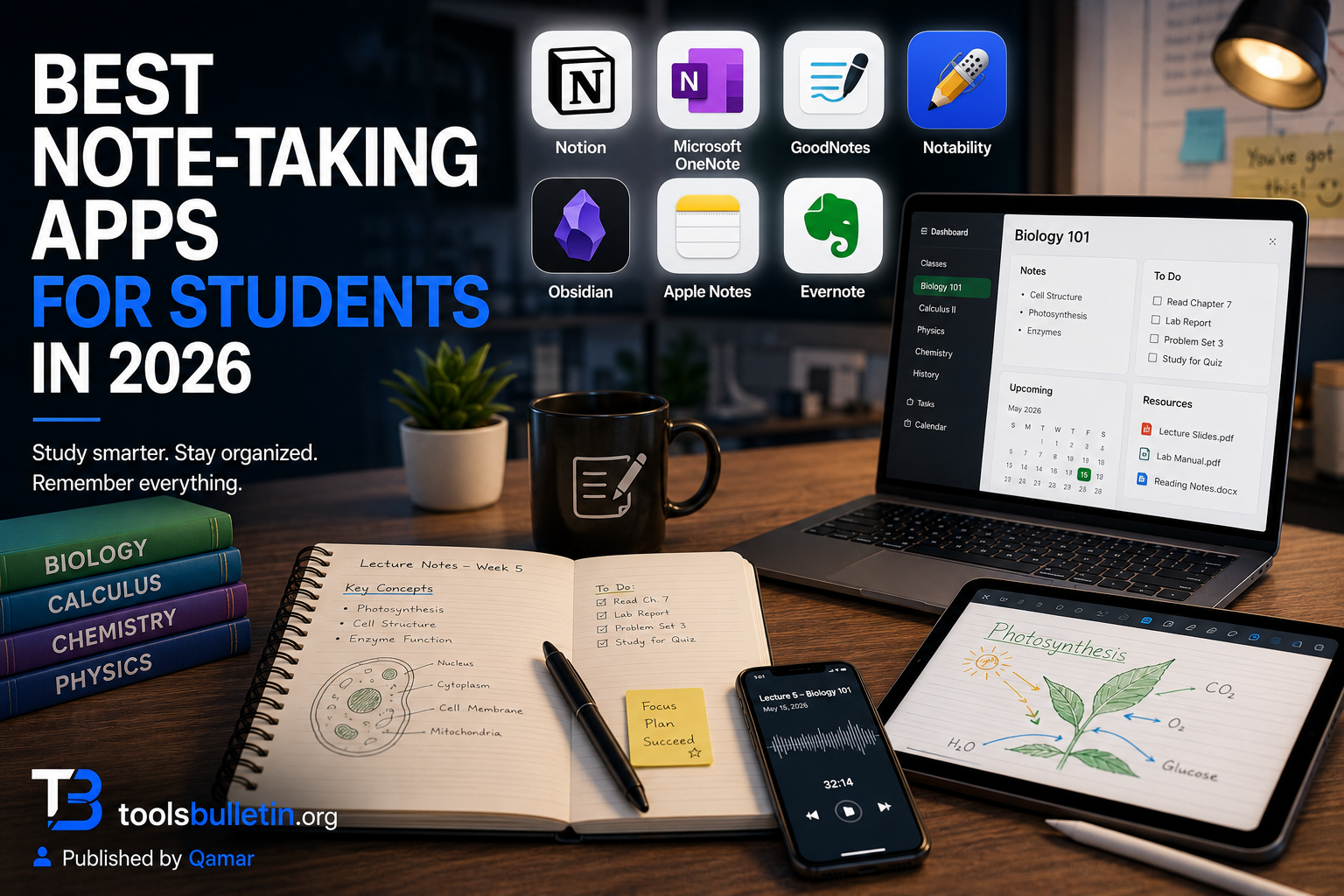
Somewhere around week three of the semester, most students hit the same wall: notes scattered across a notebook, a random Google Doc, three different apps, and a photo of a whiteboard they never actually looked at again. I’ve been there. The problem usually isn’t motivation; it’s that most people pick a note app the way they pick a water bottle, whatever’s already on their phone, without thinking about whether it actually matches how they take notes.
I spent the last several weeks running my actual coursework (well, borrowed assignments from a friend still in school, since my own student days are behind me) through seven of the apps students reach for most, typing lecture notes, annotating PDFs, hand-drawing a diagram or two, and trying to find things again three weeks later. That last part matters more than people think.
How I chose and tested these
I focused on apps students actually use for classes, not general productivity tools dressed up as note apps. My criteria were how well each one handles the specific chaos of student note-taking, typed notes, handwriting, PDF annotation, audio from lectures, cross-device syncing between a laptop and a phone, how usable the free tier genuinely is (a lot of student budgets are close to zero), and how easy it is to actually find an old note again once you have hundreds of them. I typed, scribbled, annotated, and searched my way through real coursework material in each app over multiple weeks rather than just skimming the feature list.
The tools worth your time
1. Notion Best for: students who want one hub for notes, assignments, deadlines, and general class chaos instead of five separate apps. What stood out: I built a single-class dashboard with a reading tracker, a notes database, and a due-date calendar linked together, and once it was set up, I stopped opening four different apps to check what was due. That “everything in one workspace” habit is genuinely what makes people stick with it. Genuine limitation: the setup cost is real; if you just want to open an app and start typing during a lecture, Notion’s block-based editor gets in the way more than a simple page would. It rewards people willing to spend an hour setting up a system. Approximate price: free for individuals; students with a verified .edu email get the Plus plan free, which is genuinely worth doing before paying for anything here.
2. Microsoft OneNote Best for messy, non-linear notes, STEM classes especially, where you need to type an outline, drop in a screenshot, and scribble a diagram all on the same page without fighting a rigid layout. What stood out: the free-form canvas means I could paste a lecture slide, type notes next to it, and hand-draw an arrow connecting two ideas without switching modes or fighting a text box. For chemistry or physics notes with diagrams, that flexibility beats a strict top-to-bottom document. Genuine limitation: it can feel cluttered fast. The freedom that makes it great for messy “STEM notes” also means your notebook can turn into a disorganized mess if you’re not deliberate about structure from week one. Approximate price: free, with 5GB of OneDrive storage included, which comfortably covers years of notes for most students.
3. GoodNotes Best for: iPad users who want handwritten notes that actually feel natural, especially for math, diagrams, or annotating PDF readings. What stood out: the handwriting-to-text search is the feature that sold me. I could search my messy handwritten notes for a specific term, and it found it even though I never typed a word, which makes handwritten notes searchable in a way paper never was. Genuine limitation: it’s built around handwriting and PDF annotation first; if most of your notes are typed rather than handwritten, you’re paying for a feature set you won’t use much. Approximate price: a subscription runs around $10/month or roughly $70 to $80/year, with a one-time purchase option that occasionally comes back depending on current pricing.
4. Notability Best for: recording and syncing audio during lectures directly alongside the notes you’re taking in real time. What stood out: I recorded a mock lecture while taking notes, and tapping back into my notes later jumped the audio playback to that exact moment, which turned a wall of scribbled notes into something I could actually re-listen to and cross-reference. That’s a genuinely different use case than most note apps solve for. Genuine limitation: like GoodNotes, it leans heavily on handwriting and Apple devices; Android and Windows users are mostly locked out of the full experience. Approximate price: subscription-based, generally in a similar range to GoodNotes, roughly $9 to $12/month or an annual plan around $30 to $40.
5. Obsidian is best for students who want their notes to actually connect to each other, research-heavy majors, thesis work, or anyone who wants to build a real knowledge base rather than a pile of disconnected pages. What stood out: linking one note to another and watching Obsidian’s graph view show me how ideas connected across an entire semester’s worth of readings was genuinely useful for a research-heavy class; it surfaced a connection between two sources I’d forgotten were related. Genuine limitation: There’s a real learning curve, and it stores notes as local files rather than syncing to the cloud automatically (sync is a separate paid add-on), which trips people up if they’re used to everything just working across devices out of the box. Approximate price: free for personal use; the optional Sync service runs about $8 to $10/month if you want automatic cross-device syncing.
6. Apple Notes Best for: quick, low-friction capture when you just need to jot something down fast and don’t want to think about which app to open. What stood out: it’s just already there, and the handwriting-to-typed-text conversion on iPad is solid enough for quick class notes without needing a dedicated handwriting app at all. For a student who doesn’t want to manage a separate note system, this alone covers a surprising amount of ground. Genuine limitation: it’s genuinely basic. Once your notes pile up, there’s no real database structure, and organizing hundreds of notes from a full course load gets messy fast without folders and tags done carefully. Approximate price: free, built into every Apple device.
7. Evernote Best for: students who want strong search and tagging across a large volume of notes without building a system from scratch like Notion or Obsidian requires. What stood out: its web clipper let me save an entire article with formatting intact for a research assignment, and finding it again weeks later through search was faster than I expected, even buried among dozens of other saved clips. Genuine limitation: the free plan has gotten noticeably more restrictive over the past couple of years, with limited devices and monthly upload allowances that a heavy note-taker will bump into fast. Approximate price: the free tier is limited (single device sync); paid plans start around $11 to $15/month depending on the current pricing tier.
Notion vs. OneNote: Which Should You Actually Pick?
This is the comparison I get asked about most, and it really comes down to what kind of mess you’re trying to solve. If your problem is “I have assignments, deadlines, and notes scattered across five places,” Notion is built for exactly that, one workspace holding everything together, especially with the free student plan removing the cost objection entirely. If your problem is specifically “my notes need to be messy, visual, and non-linear,” particularly for STEM classes with diagrams and equations, OneNote’s free-form canvas handles that better than Notion’s structured blocks ever will. I’d pick Notion for planning-heavy majors and OneNote for diagram-heavy ones.
FAQs
Do I need a paid note-taking app, or is free enough? For most students, free is genuinely enough. OneNote and Apple Notes cover typed and basic handwritten notes at zero cost, and Notion’s free education plan removes the price barrier for its more advanced features too. Paid apps like GoodNotes and Notability earn their subscription specifically through handwriting quality and PDF annotation, features free apps handle less elegantly.
Which app is best for handwritten notes on an iPad? GoodNotes and Notability are the two real contenders here, and both do handwriting well. GoodNotes edges ahead on handwriting search; Notability edges ahead if you specifically want audio recording synced to your notes. Pick based on which single feature matters more to your actual classes.
Can I use more than one note app without things getting confusing? Plenty of students do, typically one for quick daily capture (Apple Notes or OneNote) and one for a specific need like handwritten lecture notes (GoodNotes) or research organization (Obsidian or Evernote). The trick is picking one as your “home base” for anything important, so you’re not searching four apps to find a specific note later.
Will these apps work with my school’s Google Classroom or Canvas setup? Most integrate reasonably well through file uploads and links rather than deep native integration; none of these apps plug directly into an LMS the way a dedicated school tool might. OneNote has the closest ties to Microsoft 365 school accounts if your school already runs on that ecosystem.
My honest recommendation
If you’re a student trying to pick just one app and stop overthinking it, start with Notion using a verified .edu email; it removes the cost barrier and genuinely scales from simple notes to full class planning as your needs grow. If your classes lean heavily on STEM with diagrams and equations, OneNote is the better free alternative. Only add a paid handwriting app like GoodNotes or Notability once you know specifically that typing isn’t working for you; that’s a real cost for a real problem, not something to buy on day one just because it looks nice on an iPad.
Prices, availability, and rankings may change. Readers should verify current details directly with each provider before purchasing.
Who: Written and reviewed by Qamar. How: Researched using current pricing and feature information from each provider and independent student-focused reviews; drafted with AI assistance; and edited and fact-checked personally. Why: To genuinely help readers make a confident, budget-aware decision.





Leave a Reply