
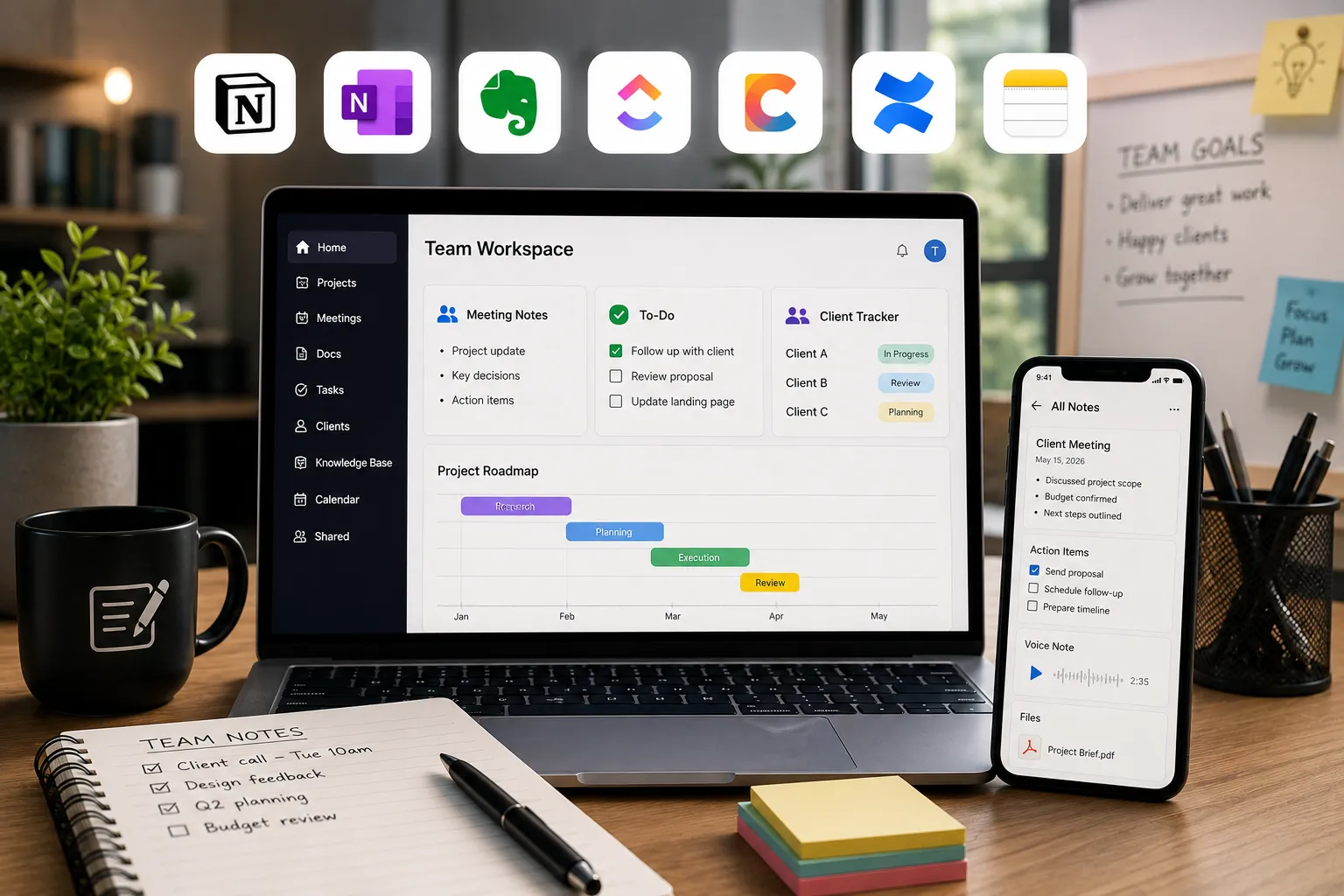
I helped a friend set up her three-person landscaping business on Notion last year, including a full workspace, databases, and the works, and watched everyone quietly drift back to texting each other and writing things on paper within about two weeks. The tool wasn’t bad. It just didn’t match how a small team actually communicates day to day. That gap, between what a note app promises on its marketing page and what a small team will genuinely keep using, is the thing most “best of” lists skip entirely.
I spent time testing these apps specifically through the lens of a small business, not a solo freelancer or an enterprise team with a dedicated IT department, somewhere in between, where every subscription has to justify itself and everyone on the team actually has to open the thing daily for it to matter.
How I chose and tested these
I focused on apps a small team, roughly two to fifteen people, would realistically adopt and stick with, not just tools with an impressive feature list. My criteria were real collaboration (can multiple people actually edit and find things without stepping on each other), how the pricing scales as you add team members (a lot of “affordable” tools get expensive fast per seat), integration with everyday business tools like email and calendars, and honestly, how steep the learning curve is, since a tool your team abandons after two weeks is worse than no tool at all. I set up shared workspaces in each app and tracked meeting notes, a client project, and a simple internal wiki page across several weeks to see what actually stuck.
The tools worth your time
1. Notion Best for: small businesses that want one flexible workspace for notes, a lightweight client database, and internal documentation together. What stood out: I built a simple client tracker linked to project notes, so opening a client’s page showed their notes, contact info, and project status all in one place, without needing a separate CRM for a business this size. Genuine limitation: It takes real setup time to feel organized rather than cluttered, and costs scale meaningfully once you add team members and want admin features like SSO; a five-person team on the Business tier lands well into three figures a month once you factor in the higher-tier plans. Approximate price: free for up to a small team on the basic plan; business plans typically run around $15 to $20 per member per month.
2. Microsoft OneNote Best for: small businesses already paying for Microsoft 365, since it comes bundled at no extra cost and plugs directly into Outlook and Teams. What stood out: attaching a OneNote page directly to an Outlook meeting invite meant everyone showed up with the same notes template already open, with no separate app to explain to new hires who already know Outlook. Genuine limitation: It’s genuinely limited outside the Microsoft ecosystem; if your team isn’t already on Microsoft 365 for email, buying into it purely for OneNote doesn’t make much sense. Approximate price: included with Microsoft 365 Business Standard, which runs roughly $12.50 per user per month; no separate cost if you’re already subscribed.
3. Evernote Best for: a small team that wants reliable, no-frills capture and search without a steep learning curve. What stood out: the advanced search genuinely finds text buried inside scanned documents and images. I tested this by searching for a phrase inside a photographed invoice, and it surfaced the note correctly, which is a quietly useful feature for a business drowning in paperwork. Genuine limitation: Real team collaboration features are thinner than dedicated workspace tools like Notion or Coda; it’s stronger as a shared capture tool than a full team knowledge base. Approximate price: Evernote Teams plans generally run in the $15 to $20 per user per month range, worth checking current pricing since it’s been repriced more than once under recent ownership.
4. ClickUp Docs Best for: small businesses that already use ClickUp for task management and want notes linked directly to actual work, not sitting in a separate app. What stood out: linking a client meeting note directly to the task it generated meant nobody had to manually copy an action item into a project board; the note and the task stayed connected, which cut down on the “Wait, did we actually assign this?” conversations. Genuine limitation: if you’re not already using ClickUp for tasks, adopting it purely for the notes feature is a heavier lift than a dedicated notes app; you’re really buying into an entire project management system. Approximate price: free tier available; paid plans with the full Docs feature set generally start around $7 to $12 per user per month.
5. Coda Best for: small teams that want notes and lightweight business tools, a simple tracker, and an approval workflow in one connected doc rather than juggling separate apps. What stood out: I built a simple client onboarding checklist directly inside a Coda doc with a status tracker built in, and it felt closer to a lightweight internal tool than a traditional note page without needing a developer to set it up. Genuine limitation: it has a steeper learning curve than a straightforward notes app; the power comes from its table and automation features, which take longer to feel natural than just typing a note. Approximate price: the free plan covers small team basics; Pro runs around $10 per month per doc maker, and team plans around $30 per month per doc maker for more advanced features.
6. Confluence is best for small businesses that specifically need a proper internal wiki, documented processes, onboarding guides, and SOPs that outlast any one employee’s personal notes. What stood out: the page hierarchy and version history meant when we updated a standard operating procedure, the change history stayed intact, and previous versions were easy to reference, exactly the kind of structure ad-hoc note apps don’t offer. Genuine limitation: It’s overkill for day-to-day quick notes and meeting capture; it’s built for structured documentation, not casual daily use, so most teams end up needing a second, lighter tool alongside it. Approximate price: free for up to 10 users; paid plans start around $5 to $6 per user per month for standard tiers.
7. Apple Notes Best for: a very small team, two or three people, fully on Apple devices, that wants zero setup and zero monthly cost. What stood out: shared folders synced instantly between two Apple devices with no configuration at all; for a business genuinely this small, the complete lack of setup time is itself the feature. Genuine limitation: it has no real structure for a growing business, no databases, no task linking, and no client tracking. It works until your team or your note volume outgrows a basic folder structure, and that point comes sooner than you’d expect. Approximate price: free, included with any Apple device.
Notion vs. OneNote for a small team: which should you actually pick
This one comes down to what you’re already paying for. If your team already runs on Microsoft 365 for email and calendars, OneNote is essentially free, already integrated, and asks nothing extra of your team to adopt. If you’re not locked into Microsoft, or you specifically want a lightweight client tracker alongside your notes without buying separate CRM software, Notion’s flexibility earns its higher price tag. I’d default to OneNote for cost reasons unless you have a specific structured-workspace need Notion solves better; that’s usually the deciding factor, not raw feature count.
FAQs
Do we really need a paid note-taking app, or can a small team get by on free tools? For a very small team (two or three people), free tools like Apple Notes or Google Keep genuinely work fine. Once you’re coordinating five or more people, sharing client information, or need real search across months of notes, the collaboration and search features on paid tiers start earning their cost quickly.
What’s the difference between a note-taking app and a proper business wiki? A notes app is built for quick, ongoing capture, meeting notes, ideas, and quick reference. A wiki tool like Confluence is built for structured, versioned documentation that’s meant to stay accurate over time, think onboarding guides or standard procedures. Most small businesses eventually want both: a fast notes tool for daily use and a slower, more structured one for anything that needs to stay correct long-term.
How do we stop the team from just going back to Slack messages and texts instead of using the note app? Honestly, pick the tool that adds the least friction to what your team already does; if everyone already lives in Outlook, OneNote beats a flashier tool nobody opens. Adoption usually fails when a tool asks a small team to change its whole workflow rather than fitting into it.
Is it worth paying more for a tool with built-in AI features for meeting notes? It can be if your team spends a lot of time in recurring meetings and manual note-taking is a genuine bottleneck. For a small team that mostly needs quick capture and occasional search, it’s often an unnecessary added cost, worth trying the free tier of a tool first before paying extra specifically for AI features.
My honest recommendation
If your business already runs on Microsoft 365, start with OneNote; it costs nothing extra and integrates with tools your team already opens daily, which matters more for adoption than any feature list. If you’re not on Microsoft and want a bit more structure, a simple client tracker alongside your notes, Notion is worth the cost; just budget real setup time rather than expecting your team to adopt it in an afternoon. Skip Confluence unless you specifically need versioned documentation that outlives individual employees; it solves a real problem, just not the day-to-day one most small teams have first. Whatever you pick, the tool that wins is the one your team is still using in three months, not the one with the most features on launch day.
Prices, availability, and rankings may change. Readers should verify current details directly with each provider before purchasing.
Who: Written and reviewed by Qamar. How: Researched using current pricing and feature information from each provider and independent reviews; drafted with AI assistance; edited and fact-checked personally. Why: To genuinely help readers make a confident, budget-aware decision for their team.






Leave a Reply