
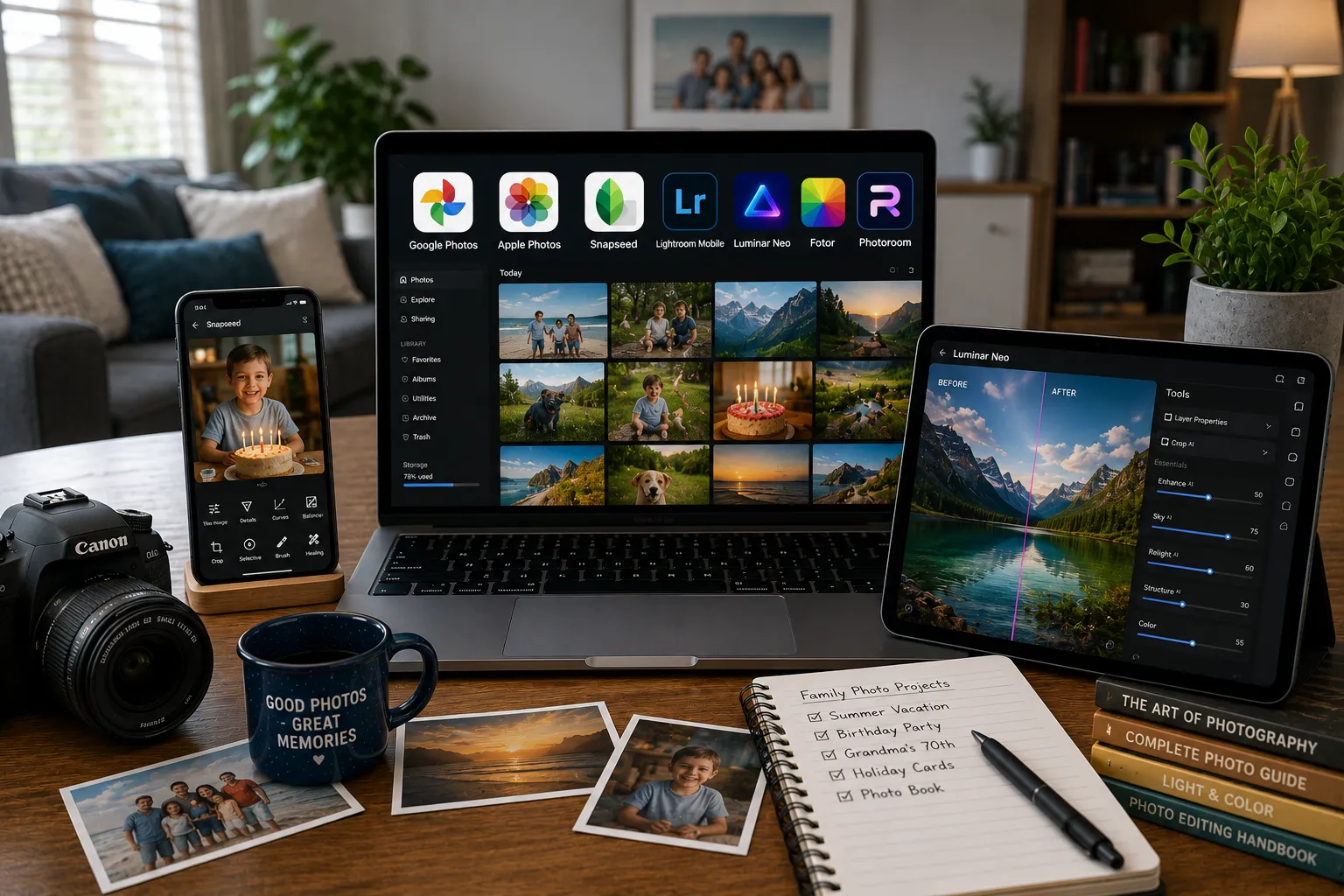
Most of the photos I actually edit at home have nothing to do with art, they’re a slightly too-dark shot of my kid’s birthday cake, a family group photo where someone’s blinking, or a vacation picture I want to brighten before printing it for a frame. That’s a genuinely different problem than what most photo editing guides are written for, which tend to assume you’re a hobbyist photographer with opinions about RAW files and color grading.
I tested the photo editors people actually reach for at home, quick fixes on phone photos, organizing years of family pictures, the occasional print-worthy edit, rather than the professional workflow tools built for people shooting weddings for a living. A few of these earned a permanent spot on my phone. One turned out to be more useful for organizing than actual editing, which was a genuinely useful thing to learn.
How I chose and tested these
I focused on how well each tool handles real household photo tasks: quick brightness and color fixes on phone photos, removing an unwanted person or object from a family photo, organizing years of accumulated pictures so you can actually find one again, and how usable the free tier is for someone who edits occasionally rather than daily. I also weighed how steep the learning curve is, since most people at home don’t want to learn a professional editing workflow just to fix a birthday photo. I ran real family photos, some good, several genuinely mediocre, through each tool to see what actually improved them without a lot of effort.
The tools worth your time
1. Google Photos Best for: households that just want their photos automatically organized and lightly touched up without thinking about it much. What stood out: the built-in editing tools (brightness, crop, a few filters) are genuinely enough for quick fixes, and the automatic backup and face-grouping meant I could find every photo of my kid across three years of vacations by just tapping her face once. That search capability alone changes how usable a photo library actually is. Genuine limitation: the actual editing tools are basic by design, no real background removal or object cleanup, it’s built for organizing and light touch-ups, not serious editing. Approximate price: free with generous storage tied to your Google account; Google One storage plans start around $2/month if you need more space.
2. Apple Photos Best for: Apple households that want solid built-in editing and organization without installing anything separate. What stood out: it’s already there on every Apple device, and the editing tools, exposure, color, a basic retouch brush, cover the vast majority of what a family photo actually needs, plus it syncs edits automatically across an iPhone, iPad, and Mac without extra setup. Genuine limitation: like Google Photos, its editing depth is genuinely basic, no real background removal or advanced object cleanup, and it’s useless if your household isn’t on Apple devices. Approximate price: free, built into every Apple device; iCloud storage plans start around $1 to $3/month for more space.
3. Snapseed Best for: actually improving a photo, not just organizing it, brightness, color, selective adjustments, all for free with no ads at all. What stood out: a recent update added batch editing and a refreshed selective adjustment tool, and I used it to brighten just a face in a backlit photo without touching the background, a level of control that genuinely surprised me from a completely free app with zero ads or upsells. Genuine limitation: it’s mobile-only and edits one photo at a time outside of the newer batch tools, there’s no desktop version and no real organizing or library features, it’s purely an editor. Approximate price: completely free, no ads, no in-app purchases.
4. Adobe Lightroom Mobile Best for: households that want a genuinely more capable editor than the built-in phone tools without committing to a full paid subscription. What stood out: the free mobile version includes real preset support and reasonably deep color and light adjustments, I applied the same preset across a batch of vacation photos and they matched in tone in a way manual one-by-one editing never quite achieves. Genuine limitation: some organizing and syncing features, along with custom preset uploads on the web version, sit behind a paid subscription, the free tier is genuinely useful but nudges you toward paying once you want more. Approximate price: free mobile app with core editing; paid plans (bundled with desktop Lightroom and cloud storage) generally start around $10/month.
5. Luminar Neo Best for: households that want a genuinely powerful desktop editor as a one-time purchase, no ongoing subscription, ever. What stood out: its AI sky replacement and relighting tools turned a flat, overcast vacation photo into something genuinely print-worthy in a couple of clicks, without needing to understand masking or manual color grading first. Genuine limitation: it’s a real desktop program, not a quick phone app, so it’s better suited to a periodic “edit a batch of vacation photos” session than a quick daily touch-up. Approximate price: one-time purchase, commonly discounted, generally landing somewhere in the $70 to $150 range depending on current promotions, with a 30-day money-back guarantee typically offered.
6. Fotor Best for: quick collages and simple design touches on top of basic photo editing, useful for putting together a photo card or a simple family album page. What stood out: building a photo collage from a folder of vacation pictures took just a few minutes with genuinely decent templates, which covered a task (making something printable or shareable, not just a single edited photo) that most pure photo editors don’t handle at all. Genuine limitation: the free tier watermarks some exports and limits access to premium templates and AI tools, expect regular nudges toward the paid plan. Approximate price: free tier with limits; Fotor Pro runs around $9 to $12/month, with cheaper annual billing typically available.
7. Photoroom Best for: cleanly removing or replacing a background, useful for turning a cluttered photo into something you’d actually want to print or share. What stood out: it handled fine, wispy details, hair, fur on a family pet, noticeably better than most background removers I tested, which is usually where these tools visibly struggle. Genuine limitation: it’s a specialist tool built around background removal and replacement specifically, not a general photo editor, you’ll still want something else for color and exposure adjustments. Approximate price: free tier with watermarked or limited exports; paid plans generally start around $10/month for full-resolution, unwatermarked exports.
Google Photos vs. Apple Photos: which should you actually pick
This one comes down entirely to which devices your household already uses, and honestly, that’s the right way to decide. If everyone’s on iPhones and Macs, Apple Photos syncs automatically with zero setup and the editing tools are perfectly adequate for family photos. If your household mixes Android and iPhone, or you’re already living in Gmail, Google Photos works identically everywhere and its face-search and automatic organization are genuinely a notch ahead of Apple’s for finding an old photo fast. I’d pick based on what’s already synced to your phone, not which app has marginally better filters.
FAQs
Do I need to pay for photo editing software for home use, or is free enough? For the vast majority of family photo needs, quick brightness fixes, organizing years of pictures, occasional touch-ups, free tools like Google Photos, Apple Photos, and Snapseed genuinely cover it. Paid tools like Luminar Neo or Lightroom earn their cost specifically when you want deeper control, batch presets, sky replacement, that free tools don’t offer.
What’s the best way to remove someone from the background of a family photo? Photoroom handles background removal and replacement specifically well, including tricky details like hair and fur. For simpler object removal within an otherwise good photo, Google Photos and Snapseed both include basic cleanup tools that work fine for small distractions.
How do I actually find an old photo in a library of thousands? Google Photos and Apple Photos both use face recognition and automatic categorization (people, places, things) to make searching a massive library genuinely fast, tapping a person’s face or searching “beach” or “birthday cake” surfaces relevant photos without manual tagging. This is honestly one of the more underrated features in either app.
Is it safe to store family photos in these apps, or should I keep a separate backup? Cloud sync through Google Photos or iCloud is reasonably reliable, but it’s not the same as a true backup, accidental deletions or account issues can still affect your synced library. Keeping a second copy, an external drive or a dedicated backup service, alongside cloud sync is still worth doing for photos you genuinely can’t replace.
My honest recommendation
For most households, I’d start with whichever built-in app matches your phone, Google Photos or Apple Photos, since both are free, already synced, and cover organizing plus basic editing without any setup. Add Snapseed for anything needing a real edit beyond brightness and cropping, it’s genuinely capable and completely free. Only consider Luminar Neo if you’re the type of household that wants to sit down periodically and properly edit a batch of vacation or holiday photos, that’s a real one-time cost worth paying for, not something to buy for quick everyday touch-ups.
Prices, availability, and rankings may change. Readers should verify current details directly with each provider before purchasing.
Who: Written and reviewed by Qamar. How: Researched using current pricing and feature information from each provider and independent reviews, drafted with AI assistance, edited and fact-checked personally. Why: To genuinely help readers make a confident decision for everyday family photo needs.






Leave a Reply