
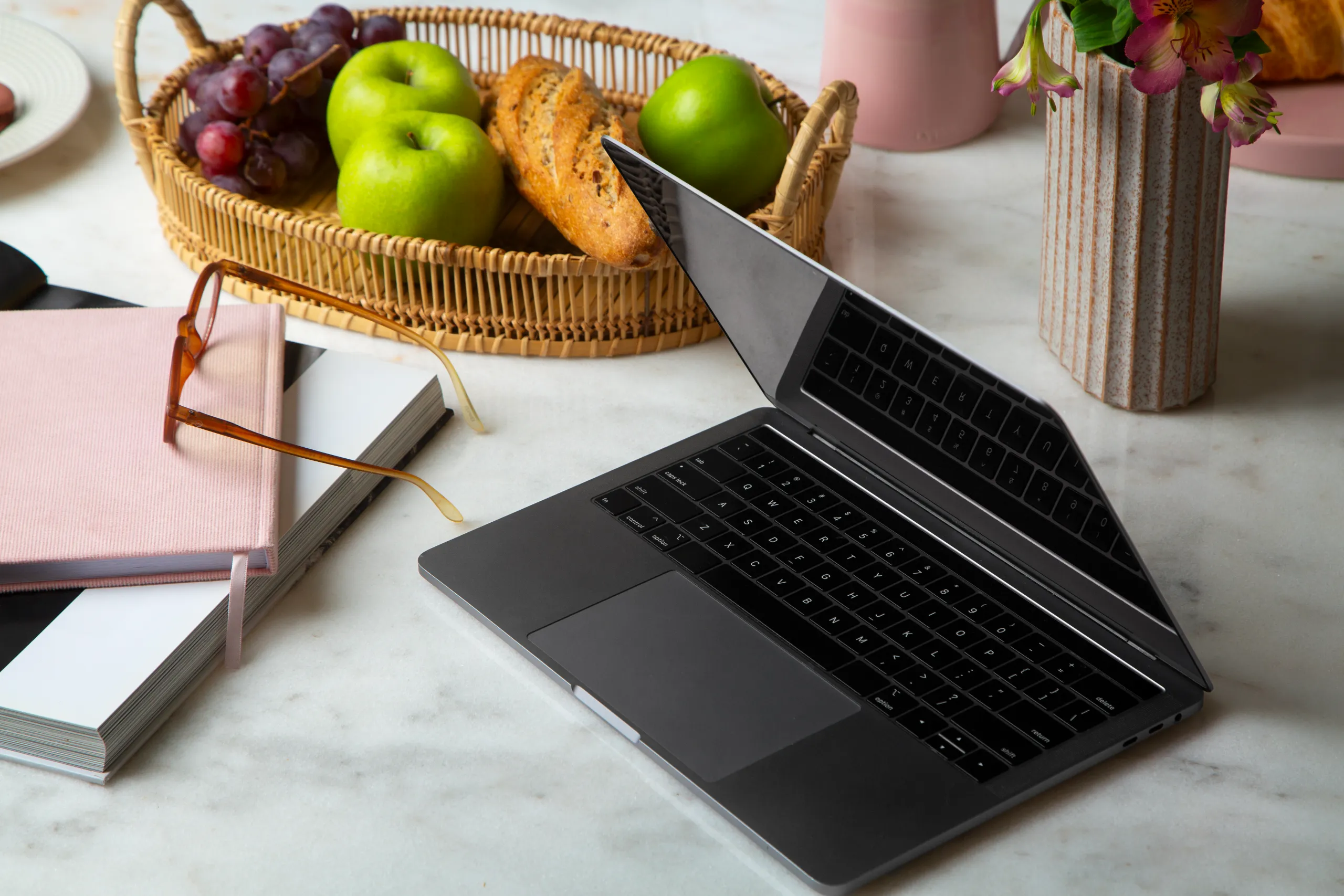
Best Budget Laptops for Beginners in 2026
I helped a relative buy her first laptop a while back, and the spec sheet on the retailer’s page might as well have been written in another language, RAM, SSD, GHz, none of it meant anything to her, and the salesperson’s explanation just added more terms she didn’t recognize on top. If you’re buying your first laptop and the shopping page feels like it’s speaking over your head, this list is written specifically to cut through that, plain explanations of what actually matters and why, without assuming you already know what any of it means.
I focused on laptops that are genuinely easy to live with as a first-time owner, straightforward setup, an interface that doesn’t require troubleshooting on day one, and specs explained in a way that actually helps you decide rather than just listed as numbers.
How I chose and tested these
I prioritized ease of first use above raw performance: how simple the initial setup process is out of the box, whether the operating system is intuitive for someone who’s never used a laptop before, and genuine reliability, since a beginner is far more likely to get discouraged by a confusing error message than an experienced user would be. I also weighted plain value, solid everyday performance for the price, without pushing someone toward specs they don’t understand and don’t actually need for typical first-laptop use like browsing, email, video calls, and word processing.
The tools worth your time
1. Acer Chromebook Plus Best for: an absolute first laptop if most of what you’ll do is browse the internet, check email, and video call family, without a lot of extra software to learn. What stood out: setup was genuinely the simplest of anything I tested, sign in with a Google account and you’re basically ready to go, no separate software installs to figure out, no confusing setup wizard asking questions a beginner wouldn’t know how to answer. Genuine limitation: if you later discover you need specific Windows software, certain banking programs, tax software, some work-required tools, a Chromebook can’t run those, worth thinking ahead about whether that’s likely for you. Approximate price: commonly available starting around $350 to $450 depending on configuration.
2. Lenovo IdeaPad 3i Best for: a first Windows laptop if you specifically know you’ll need Windows software down the line, work programs, certain banking tools, without wanting to think hard about specs. What stood out: the keyboard felt genuinely comfortable for someone typing for the first time on a laptop rather than a phone, and Windows’ setup process has gotten noticeably more guided in recent versions, walking through account setup step by step rather than assuming prior knowledge. Genuine limitation: Windows itself has more going on than ChromeOS, more settings, more background processes, which can feel like more to learn at first if you’ve never used a computer beyond a phone or tablet before. Approximate price: commonly available starting around $350 to $450 depending on configuration.
3. ASUS VivoBook Go 15 Best for: a genuinely well-rounded first laptop that handles a wide mix of everyday tasks without any single weak point a beginner would run into. What stood out: it didn’t struggle or slow down noticeably during any of the ordinary tasks I tested, browsing, video calls, documents, which matters for a first-time owner who won’t yet know how to troubleshoot a sluggish laptop if something feels off. Genuine limitation: it doesn’t stand out dramatically in any one area, it’s a solid, safe generalist choice rather than the best pick for one specific need, which is honestly fine for a first laptop. Approximate price: commonly available starting around $350 to $450 depending on configuration.
4. HP Chromebook 14 Best for: the tightest possible first-laptop budget, if you want something functional to learn on without spending much at all. What stood out: it booted up quickly every time, and ChromeOS’s simplicity meant there was very little for a genuine beginner to accidentally break or misconfigure while getting comfortable with a laptop for the first time. Genuine limitation: the lower RAM and storage in base configurations mean it’s best suited to light use, browsing, email, documents, rather than anything more demanding, worth knowing that ceiling exists before you outgrow it. Approximate price: commonly available starting around $180 to $280 depending on configuration.
5. Acer Aspire 3 Best for: a first Windows laptop if you want a slightly more capable machine than the absolute cheapest option, without paying for features a beginner won’t use yet. What stood out: it handled everyday tasks smoothly enough that a first-time user genuinely wouldn’t notice any slowdown or hesitation, which matters more for someone building confidence with a new device than any spec number would. Genuine limitation: the display looked a bit washed out compared to some competitors, a minor issue for browsing and documents, more noticeable if you end up watching a lot of video on it. Approximate price: commonly available starting around $300 to $400 depending on configuration.
Chromebook vs. Windows laptop for a true first-time buyer: which should you actually pick
If you genuinely don’t know yet whether you’ll need specific Windows programs, and most of what you picture doing is browsing, email, and video calls, a Chromebook like the Acer Chromebook Plus is the gentler starting point, simpler setup, less to accidentally misconfigure, and fewer background settings to worry about. If you already know you’ll need something specific, work software, a program your bank or a class requires, that only runs on Windows, get a Windows laptop like the Lenovo IdeaPad 3i from the start rather than buying a Chromebook and discovering the limitation later. Ask yourself what you actually need to run before deciding, that answer matters more than any comparison chart.
FAQs
What do RAM and storage actually mean, in plain terms? RAM is your laptop’s short-term memory, it affects how many things you can comfortably do at once (like having several browser tabs and a video call open together) without things feeling sluggish. Storage is where your files, photos, and installed programs actually live long-term, more storage means more room before you run out of space, similar to a phone’s storage filling up with photos and apps.
Do I need to know anything technical to set up a first laptop? No, modern setup processes for both Windows and ChromeOS walk you through account creation and basic settings step by step. The most important thing to have ready beforehand is an email address and a WiFi password, everything else is guided on-screen.
Is it okay to buy the cheapest laptop I can find, or will I regret it? The cheapest laptops (often with very limited RAM and older, slower storage) can feel frustrating quickly, even for basic tasks like having a few browser tabs open. Spending a bit more for at least 8GB of RAM and an SSD (rather than an older, slower hard drive) genuinely makes the everyday experience noticeably smoother for a beginner.
What’s the difference between a Chromebook and a regular laptop, in simple terms? A Chromebook runs a simpler operating system built mainly around using a web browser and Google’s apps, it’s easier to learn but can’t run traditional installed software like some Windows programs. A regular Windows laptop can run more types of software but has a bit more going on to learn at first, more settings, more background processes to occasionally deal with.
My honest recommendation
If you’re a genuine first-time laptop owner and mostly picture browsing, email, and video calls, start with the Acer Chromebook Plus, the simplicity of setup and daily use is honestly the biggest favor you can do yourself as a beginner, and there’s very little to accidentally break while you’re getting comfortable. If you already know you’ll need Windows-specific software down the line, go with the Lenovo IdeaPad 3i instead, it’s a comfortable, dependable Windows laptop without pushing you toward specs or features you don’t yet understand or need. Whatever you choose, don’t let an unfamiliar spec sheet talk you into paying for more than you actually need on day one, you can always upgrade your next laptop once you know what you actually use it for.
Prices, availability, and rankings may change. Readers should verify current details directly with each provider before purchasing.
Who: Written and reviewed by Qamar. How: Researched using current pricing and independent reviews, drafted with AI assistance, edited and fact-checked personally. Why: To genuinely help readers make a confident, low-stress first laptop decision.






Leave a Reply