
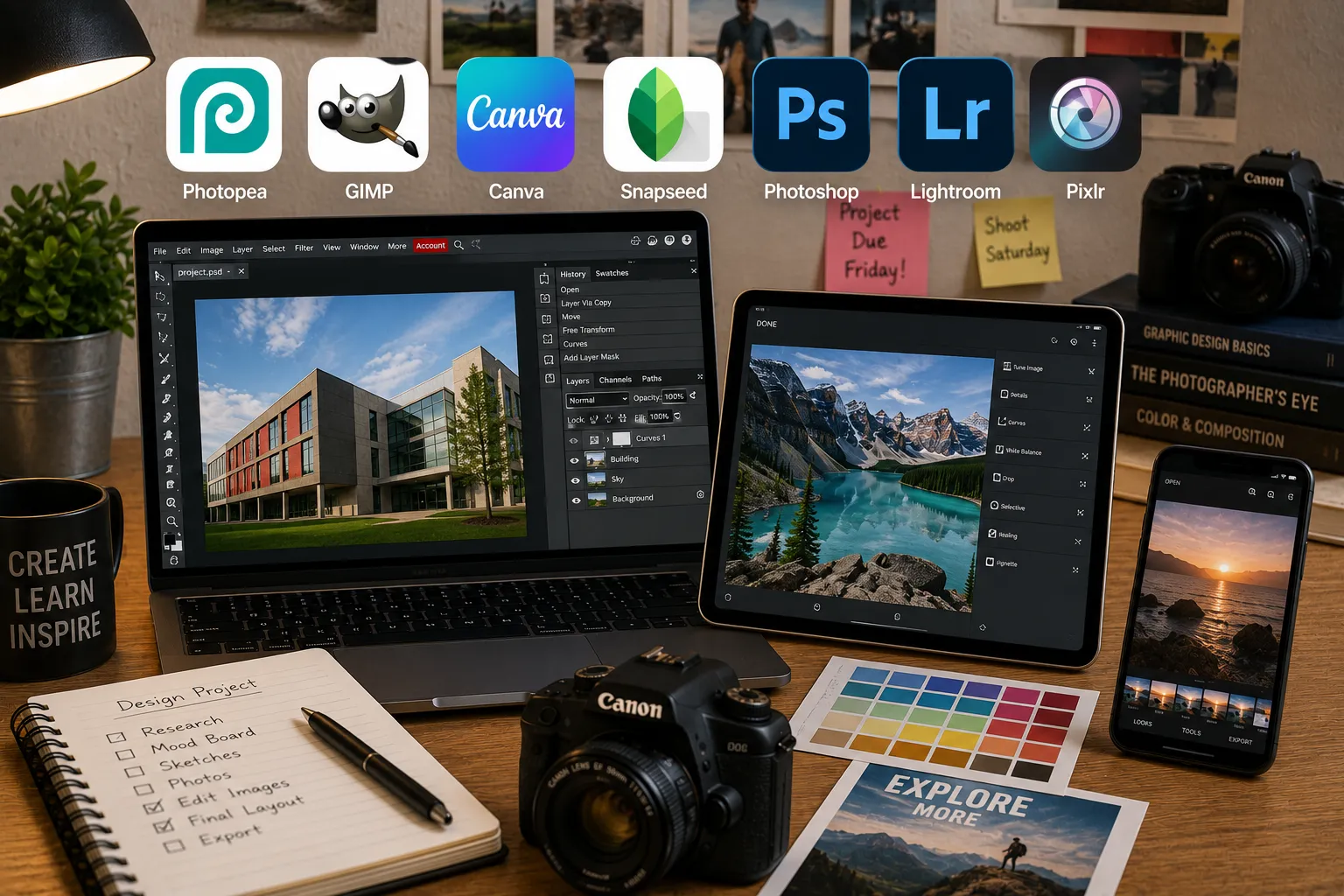
A design student I know spent her first semester convinced she needed the full Adobe Creative Cloud subscription just to finish a basic photography assignment, until a classmate mentioned she’d been doing the exact same edits for free in her browser the whole time. That’s the trap a lot of students fall into with photo editing software, assuming the “real” tools all cost real money, when the gap between free and paid has narrowed a lot more than people realize.
I tested the photo editors students actually reach for, class projects, portfolio work, quick social graphics, photography assignments, across both free and paid tiers, paying close attention to which ones a broke student could realistically live on and which ones are worth the money once you’re actually committed to a design or photography track.
How I chose and tested these
I focused on tools students genuinely use for coursework: photography classes needing real RAW editing, design classes needing layers and compositing, and quick everyday edits for presentations or social posts. My criteria were how capable the free tier actually is versus a stripped demo, whether the software opens common file formats like PSD without forcing a paid upgrade, ease of use for someone without formal training, and genuine student discounts where they exist. I edited the same handful of real photos, a RAW photography shot, a poster graphic, a quick phone photo, across every tool to compare results directly.
The tools worth your time
1. Photopea Best for: design students who need real layered, Photoshop-style editing without installing anything or paying a cent. What stood out: it opens actual .PSD files directly in the browser and the toolset is close enough to Photoshop that I could follow along with a Photoshop tutorial almost exactly, layers, masks, adjustment layers, all present, which is genuinely rare for a free browser tool. Genuine limitation: it’s ad-supported on the free tier, and heavier files can feel sluggish running entirely in a browser tab compared to a proper desktop install. Approximate price: free with ads; a premium tier removing ads runs around $5 to $10/month depending on current pricing.
2. GIMP Best for: students who want a genuinely powerful, permanent desktop editor with zero ongoing cost, no ads, no subscription, ever. What stood out: it handled a batch of RAW-adjacent edits and compositing work without choking, and once I got past the initial learning curve, the non-destructive layer workflow held up fine for a real design assignment, it’s a legitimately capable piece of software, not just a Photoshop knockoff. Genuine limitation: the interface is genuinely less polished and less intuitive than Photoshop or Photopea, expect a steeper learning curve if you’ve never used a layer-based editor before. Approximate price: completely free, open-source, no paid tier at all.
3. Canva Best for: quick project graphics, posters, and presentation visuals where speed and a finished look matter more than deep photo editing control. What stood out: the free education plan (available with a verified school email) unlocks premium templates and the Magic Studio AI tools at no cost, which meant I could build a polished poster with background removal and photo adjustments in one sitting without hitting a paywall partway through. Genuine limitation: it’s a design tool with photo editing features bolted on, not a dedicated photo editor, if you need precise RAW adjustments or detailed retouching, Canva isn’t built for that depth. Approximate price: free tier available; Canva for Education is free with a verified school email, worth confirming before paying for Canva Pro.
4. Snapseed Best for: quick, high-quality edits directly on a phone, useful for cleaning up a photo before dropping it into a project or presentation. What stood out: the selective adjustment tool let me brighten just a subject’s face without affecting the background, entirely on my phone, with a level of control I genuinely didn’t expect from a free mobile app. Genuine limitation: it’s mobile-only and built for single-image edits, there’s no real layered compositing or multi-image project workflow, it’s a polish tool, not a design tool. Approximate price: completely free, no ads, no in-app purchases.
5. Adobe Photoshop Best for: design or photography majors who need the actual industry-standard tool their coursework, and eventually their career, will likely require. What stood out: the Creative Cloud student discount cuts the price roughly in half compared to the regular individual plan, and having genuine access to Generative Fill and content-aware tools meant assignments that would’ve taken an hour of manual cloning took a few minutes instead. Genuine limitation: even with the student discount, it’s a real ongoing cost, and the learning curve is steep enough that casual, occasional use doesn’t really justify the subscription over a free alternative like Photopea. Approximate price: the Photography plan (Photoshop plus Lightroom) with student pricing typically runs around $10 to $20/month depending on current promotions, worth checking Adobe’s education page for verified eligibility and current rates.
6. Adobe Lightroom Best for: photography students specifically, since it’s built around organizing and developing RAW photos rather than general graphic design. What stood out: batch-editing a full shoot, adjusting exposure and color across dozens of images at once, saved a genuinely huge amount of time compared to editing each photo individually in a general-purpose tool, which is exactly the workflow a photography class demands. Genuine limitation: it’s not built for compositing or heavy design work, if your assignment needs layers and text and graphic elements combined, you’ll need Photoshop or Canva alongside it, not instead of it. Approximate price: bundled with Photoshop in Adobe’s student Photography plan, typically around $10 to $20/month with a verified student discount.
7. Pixlr Best for: a quick middle ground between Snapseed’s simplicity and Photopea’s full Photoshop-style complexity, right in the browser. What stood out: its AI background remover and quick retouch tools handled a messy phone photo faster than manually masking it in a more complex editor, useful when a project just needs a clean image fast rather than a deep edit. Genuine limitation: the free tier caps you on exports and some AI features, and ads are fairly noticeable compared to Photopea’s less intrusive approach. Approximate price: free tier with limits; Pixlr Premium runs around $8 to $12/month depending on the plan.
Photopea vs. Adobe Photoshop: which should you actually pick
If you’re not a design or photography major and just need to handle the occasional project graphic or photo touch-up, Photopea genuinely covers that, it’s free, opens the same file types, and the interface is close enough to Photoshop that you’re not wasting time learning skills that won’t transfer later. If you’re actually majoring in a design or photography track, the student-discounted Photoshop (with Lightroom bundled) is worth the cost, since you’ll likely need it for internships and eventual job applications anyway, and learning the exact industry-standard tool now beats relearning it later under a deadline. For a casual class project this week, I’d grab Photopea. For an actual design degree, I’d get the student Adobe plan.
FAQs
Do I really need Photoshop for school, or is a free alternative good enough? For most non-design coursework, a poster for a history project, a photo for a slide, free tools like Photopea, Canva, or GIMP cover it completely. Photoshop earns its cost specifically for design and photography majors who need the industry-standard tool their field actually uses professionally.
Is Canva’s free education plan actually free, or is there a catch? It’s genuinely free with a verified school email, unlocking premium templates and several AI tools that are normally paywalled on the regular free tier. The catch, if there is one, is that it requires ongoing verification of your student status, so it may lapse after graduation.
Can I open a Photoshop (.PSD) file without actually owning Photoshop? Yes, Photopea opens and edits real .PSD files directly in the browser for free, which is genuinely useful if a classmate or professor shares a Photoshop file and you don’t have an Adobe subscription yourself.
Which free tool is closest to actually replacing Photoshop? GIMP and Photopea are the two real contenders. GIMP is a full permanent desktop install with zero cost ever, while Photopea runs in the browser and feels more immediately familiar if you’ve seen Photoshop’s interface before. Both genuinely hold up for real coursework.
My honest recommendation
If you’re not committed to a design or photography major, start with Photopea for anything needing layers and Canva’s free education plan for quick project graphics, that combination covers the vast majority of student photo editing needs at zero cost. If you’re majoring in design or photography specifically, get the student-discounted Adobe Photography plan, the cost is real but modest with the discount, and you’ll be learning the actual tool your future internships and jobs will expect. Don’t pay for Photoshop just because it’s the “real” one if a free tool already does what your assignment actually needs.
Prices, availability, and rankings may change. Readers should verify current details directly with each provider before purchasing.
Who: Written and reviewed by Qamar. How: Researched using current pricing and feature information from each provider and independent reviews, drafted with AI assistance, edited and fact-checked personally. Why: To genuinely help readers make a confident, budget-aware decision.

Leave a Reply